In my desk in 2020, I said I was excited for 2030. I didn’t make it. My desk got a new monitor in 2026.
My setup now:
- Mac Studio (M3)
- MacBook Pro (M5)
- BenQ MA270S monitor
- iPhone Duo
- OPPO Reno13 for Android development
- NuPhy Air75 V2 keyboard
- Logitech Lift mouse
- ErgoHuman chair
With 2 Macs on my desk, I wanted one screen, one keyboard and one mouse for both, with no extra hub or dongles.
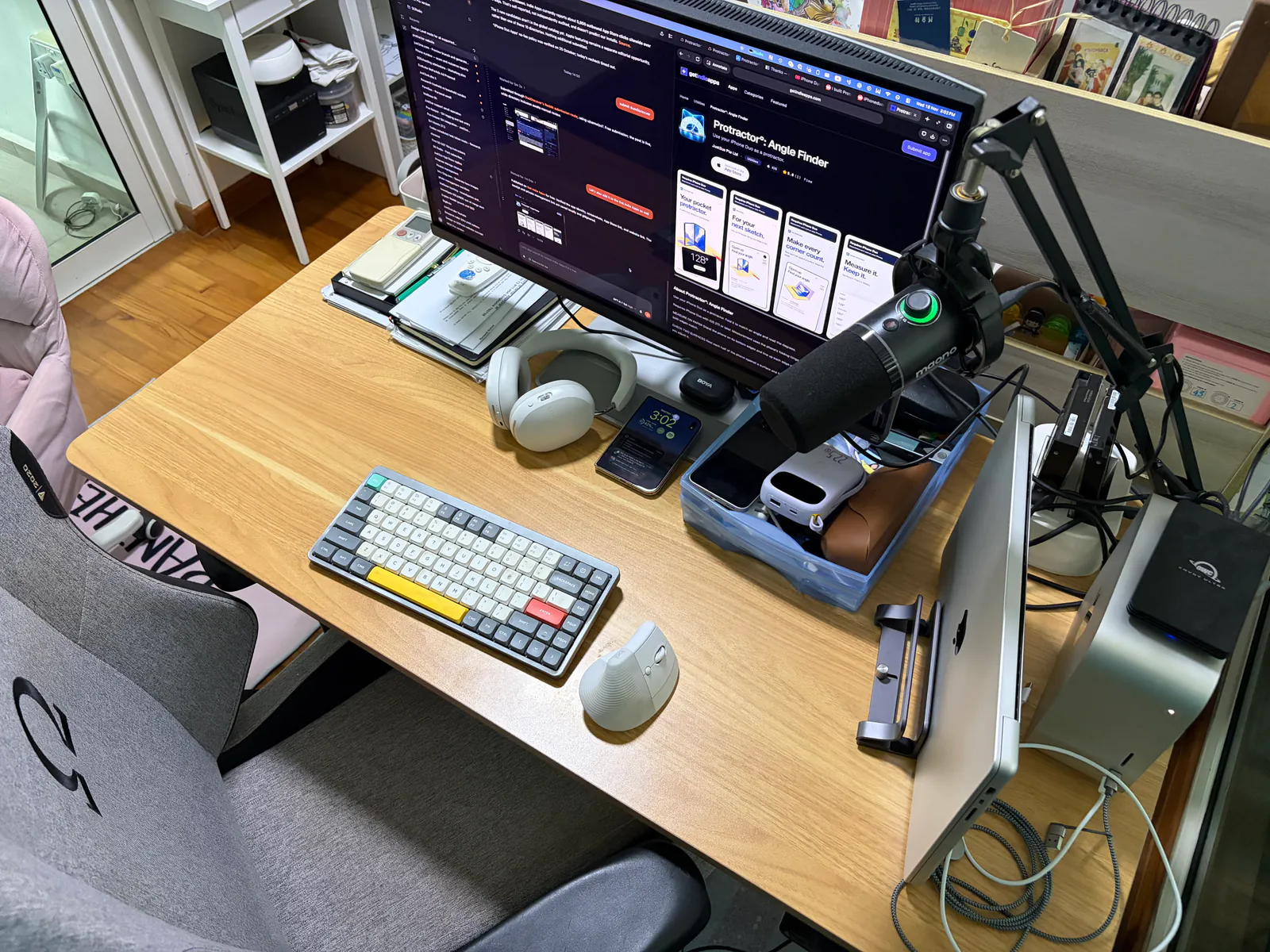 My desk in 2026
Why the BenQ MA270S
My old monitor was a 32-inch 4K Acer. It was big, but the text was never as crisp as on a Mac screen. This time I wanted 27-inch, 5K and glossy, like Apple’s Studio Display, but without paying Apple prices.
I almost bought the ASUS ROG Strix XG27JCG instead. It’s also 5K, runs at 165Hz and was only about S$890. But it’s matte, and reviews measured much better contrast on the BenQ. Glossy and the better picture won.
The BenQ also has 2 features that suit my setup:
- 96W Thunderbolt: one cable carries video, data and charging for the MacBook
- A built-in KVM switch: the keyboard and mouse follow whichever Mac is on screen
The trade-off is 70Hz, and HDR is nothing special. I waited for 11.11 and got it on Lazada for S$1,200. I believe that’s the lowest it’s ever been, and it’s about S$200 less than the S$1,400 a local retailer charges.
How I use it
- MacBook on the Thunderbolt port, so it charges while docked
- Mac Studio on the USB-C port
- Keyboard and mouse receivers in the USB-A ports underneath the monitor, both using 2.4GHz wireless
- Switching: press F3 for the Mac Studio or F4 for the MacBook
I also switch using my Logitech Lift mouse. I’ve set up Logitech’s circular action menu so pressing a mouse button opens the menu, where I can choose to switch to the other Mac.
Switching between Macs works most of the time. But there are some bugs:
- Display Pilot 2, BenQ’s Mac app, handles the hotkeys. Getting custom hotkeys working was clunky, with Accessibility and Input Monitoring permissions and a restart along the way. They do work, but it only seems to accept
Control + Shift + [number]. - Switching doesn’t wake the other Mac. If it’s asleep, I have to press keys repeatedly while the monitor is switching, hoping to wake it before the monitor gives up looking for a signal.
- Sometimes the hotkey still does nothing. I have to open Display Pilot 2 and switch from the app instead.
- Both Macs side by side (picture-by-picture) often leaves one half black.
- Smart KVM, which moves the cursor between the 2 Macs, never worked for me.
- The firmware update printed “unsupported model” errors halfway through. It still installed.
So I use one Mac at a time, full screen. The hardware is great. The software needs work.
Making my keyboard work
I use a NuPhy Air75 V2, and it took a few tries to get it working with both Macs.
- The ports that switch are hidden underneath the monitor. I first used the port at the back, and the keyboard only worked with the MacBook.
- Wireless works through the USB receivers. My NuPhy keyboard and Logitech mouse each have a 2.4GHz USB-A receiver plugged into the monitor, so both follow the KVM without cables running to the keyboard or mouse. Bluetooth pairs directly with a Mac, so the monitor can’t switch that connection.
- Brightness keys do nothing. macOS only controls brightness on Apple displays. The free MonitorControl app fixes this, but it never received NuPhy’s brightness keycodes. Mapping F1 and F2 to F14 and F15 in VIA, then recording those as shortcuts in MonitorControl, is what finally worked.
Some of my shortcuts now
I use VIA to remap the NuPhy’s keys. To get started:
- Connect the keyboard by USB cable and put it in wired mode for configuration. Open VIA in Chrome.
- Download the Air75 V2 JSON file from NuPhy’s website.
- In VIA’s Settings, enable Show Design Tab, then open Design and load the JSON file. It tells VIA which keyboard it’s configuring.
- Return to Configure, authorise the keyboard, then click a key on the layout and choose what it should do.
The bit to understand is layers: the same physical key can do different things depending on which layer is active. On the Air75 V2 in Mac mode, layer 0 is the normal layout. Holding Fn activates layer 1; releasing Fn returns to layer 0.
In VIA, I edit layer 0 to change what a key does on its own, or layer 1 to change what it does while I’m holding Fn. That’s how the cat key can turn off the display, while holding Fn and pressing the cat key opens the emoji picker. Layers 2 and 3 are for Windows, as explained in NuPhy’s VIA guide.
The keymap is saved on the keyboard itself, so it works the same on both Macs after I switch back to 2.4GHz wireless.
I repurposed F3 and F4 to switch between the Macs. I removed Mission Control and Search from those keys because I already have other ways to access them. Search is just Command + Space.
These are some of my keyboard shortcuts now:
| Key | Does |
|---|---|
| F1 / F2 | Monitor brightness down / up |
| F3 | Switch to Mac Studio |
| F4 | Switch to MacBook |
| Cat key | Turn the display off |
| Fn + cat key | Emoji picker |
| Caps Lock | Tap for Caps Lock, hold for Hyper (⌃⌥⌘⇧) |
Hyper doesn’t do anything yet. Next, I’m setting up Raycast so Hyper and a letter opens an app, like Hyper + X for Xcode.
See you in 2030, desk.